a quicker and easier way to create new subfolders in the osx finder using automator
By Steven Stromer, Jan 15, 2025
the problem
In list view, the OSX Finder window presents small, rightward pointing triangles positioned to the left of each folder (also known as a directory). When one of these triangles is clicked, it rotates to point downward, and the selected folder's contents are revealed, without requiring the user to traverse into the folder.
This accordion-style feature is exteremely helpful for maintaining a sense of location, and it significantly reduces the amount of jumping into and out of folders that would otherwise be required to locate or otherwise work with the contents of multiple folders and subfolders.
It seems logical that when we can see the contents of a folder, we might also want to do things within that directory. One obvious thing we might want to do is to create a new folder within that folder.
Faced with this scenario, we might think to select File > New Folder. It would not be surprising to discover that doing so would not create the new folder within the subfolder where we had hoped, but would instead establish the new folder within the top level directory of the active Finder window. We might then think to highlight the directory in which we want to create our new subfolder with a single-click, and then try again to create our new folder, with the traget directory highlighted. However, this will also fail to work as hoped.
Finally, we might attept to control-click on the target folder, hoping that a contextual menu option might allow us to create our new folder within our desired target folder. Disappointingly, and illogically, New Folder will not be an available option.
the solution
It feels like that menu option should be available in the contextual menu. It would save so much time and unnecessary clicking and traversing for those who regularly organize files in hierarchies. Fortunately, there's an easy way to add this option to the contextual menu using OS X's built-in Automator.
The following steps will get you there:
1. Launch the Automator app using either the Finder's Spotlight search tool, or by navigating in the Finder to Applications > Automator.
2. Within Automator, create a new Quick Action by selecting New and then selecting Quick Action in the resulting pop-up window.
3. In the new Quick Action window, set Workflow receives current to folders in Finder.
4. Add a Run AppleScript action to the workflow from the list of available options at left.
5. Paste the following lines to the empty Applescript entry box:
on run {input, parameters}
    tell application "Finder"
            set theFolder to item 1 of input
            make new folder at theFolder with properties {name:"Untitled folder"}
    end tell
    return input
end run
6. Select File > Save and title the new Quick Action with the name New Subfolder...
7. Quit out of Automator.
All done! Now, when you return to the Finder, hold down the Control key while clicking on any folder, scroll down to Quick Actions, and choose New Subfolder... to quickly and easily create a folder within the selected folder.
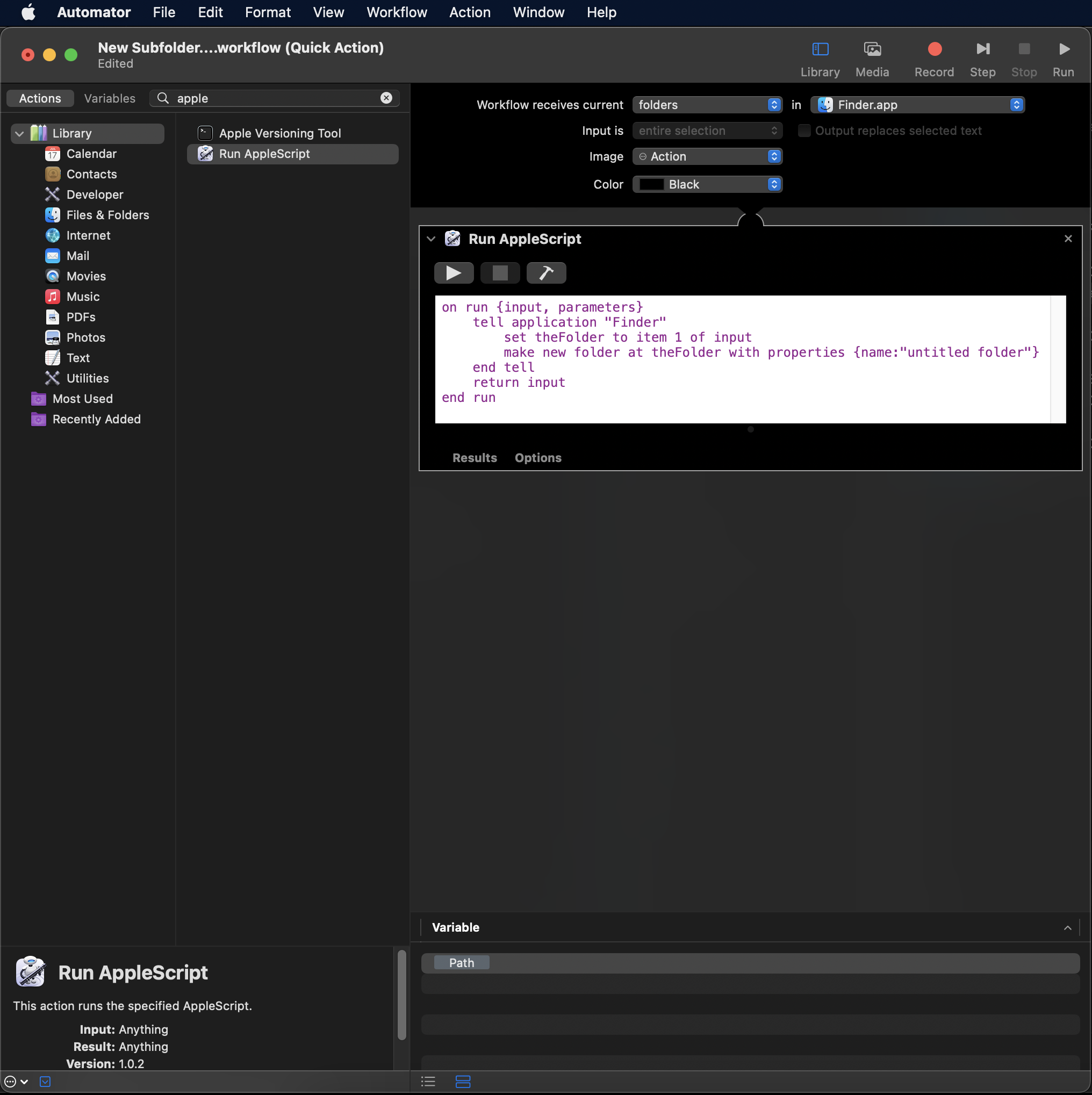
Match the displayed settings, or follow the detailed instructions in the article to create a new Quick Action.
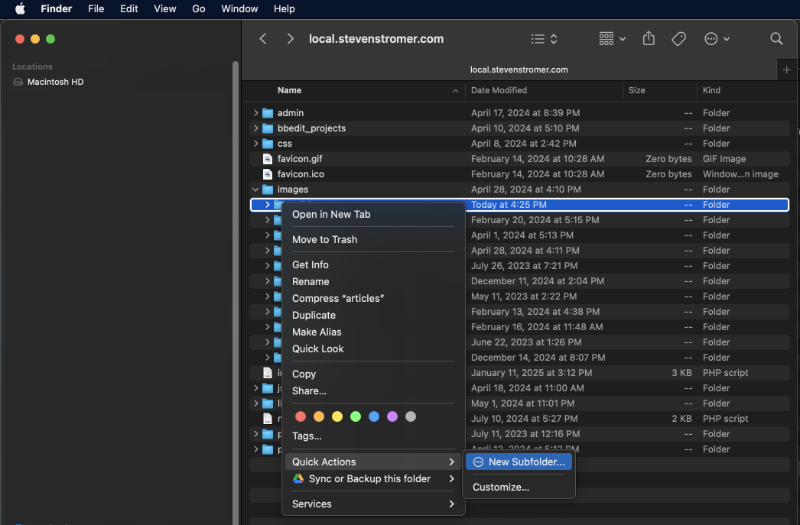
Once the Quick Action has been created in Automator, it will be available in the contextual menu.